
Designing a Home Theater for Console & PC Gaming (Low Latency + Immersion)
Key Takeaways
|
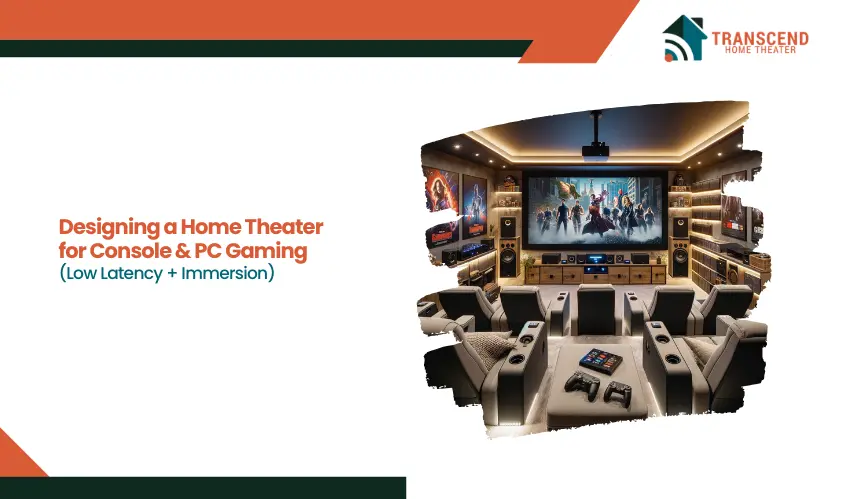
A home theater built for movies is not automatically built for gaming. The moment you connect a PlayStation 5, Xbox Series X, or high-end gaming PC, performance variables like input lag, refresh rate, HDMI 2.1 bandwidth, and audio processing delay start to matter more than pure screen size. Even a beautiful 4K display can feel sluggish if latency is above 30 milliseconds.
This guide focuses on how to structure the home theater system correctly for gaming from the start, so performance and immersion work together instead of competing against each other.
Define Your Gaming Goals Before Choosing Equipment
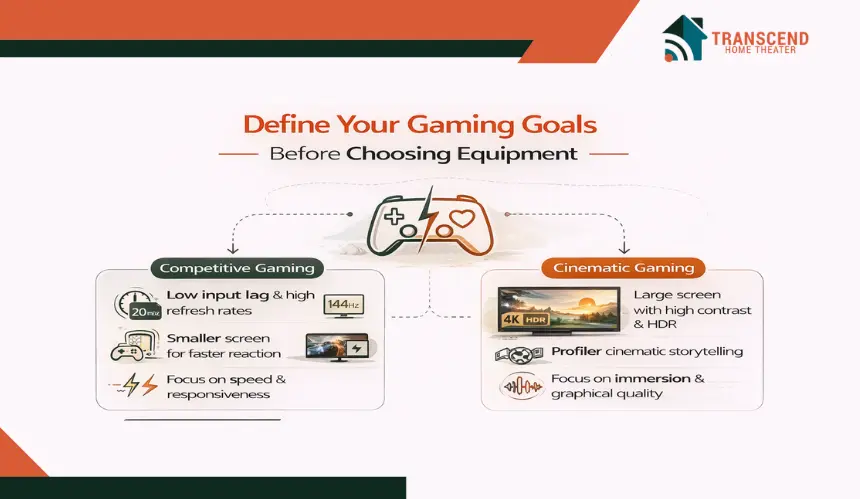
Before comparing OLED panels, gaming projectors, or AV receivers, the most important step is clarifying how the system will actually be used. Not all gaming environments demand the same performance profile. A setup designed for competitive esports titles behaves very differently from one built for cinematic single-player experiences.
Competitive Gaming vs Cinematic Gaming: What Are You Optimizing For?
For competitive gaming, responsiveness takes priority over everything else. Titles such as first-person shooters, fighting games, and racing simulators rely on:
- Input lag under 20 milliseconds
- 120Hz to 144Hz refresh rate
- Stable frame pacing
- Low response time panels
- Minimal video processing
In this scenario, motion clarity and controller latency directly impact reaction speed. Even features like motion interpolation or advanced image enhancement can introduce delay if not disabled.
Competitive players often prefer tighter screen sizes and closer viewing distances to maintain visual focus and reduce eye travel time.
Cinematic or story-driven gaming shifts the priority toward immersion. Large-format displays, deeper contrast ratios, HDR performance, and spatial audio positioning enhance atmosphere. Here, the goal is environmental realism rather than split-second reaction advantage. Screen size, room acoustics, and surround sound channel configuration become more influential than shaving a few milliseconds off latency.
Console Gaming vs PC Gaming: How Do Requirements Differ?
Console gaming systems such as PlayStation 5 and Xbox Series X typically output at fixed standards like 4K at 120Hz with HDMI 2.1. Optimization focuses on enabling features such as Variable Refresh Rate, Auto Low Latency Mode, and performance mode settings within the console interface.
PC gaming introduces more flexibility. A high-end GPU can push ultra-wide resolutions, unlocked frame rates, and adaptive sync technologies such as NVIDIA G-SYNC or AMD FreeSync. In this case, display compatibility and refresh rate synchronization become critical for preventing screen tearing and maintaining frame time stability.
Understanding whether the system will prioritize esports performance, cinematic immersion, console optimization, or GPU-driven flexibility ensures that every hardware decision aligns with the intended experience. This clarity prevents overspending on features that do not serve the gaming style and avoids bottlenecks that limit performance later in the signal chain.
Display Technology: TV vs Projector for Low-Latency Gaming
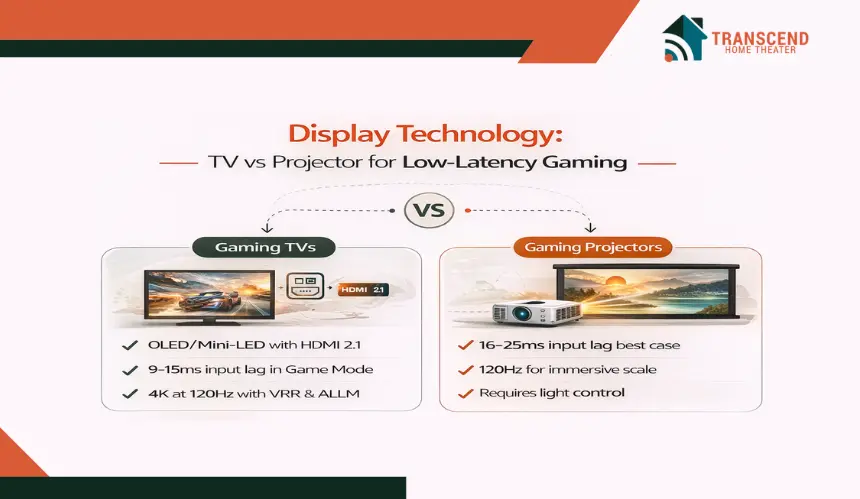
The display is the primary latency gatekeeper in a gaming home theater. Regardless of how powerful the console or GPU is, the panel’s processing pipeline ultimately determines how quickly a controller input becomes a visible on-screen action.
For gaming-focused systems, display selection should be based on measurable performance benchmarks, not marketing brightness claims or cinematic presets.
Two metrics matter most:
- Input lag in milliseconds
- Native refresh rate and HDMI bandwidth capacity
Gaming TVs: Performance-Driven Panels with HDMI 2.1
Modern gaming TVs, particularly OLED and Mini-LED models, have reduced input lag significantly when Game Mode is enabled. In properly configured conditions, many HDMI 2.1-capable TVs measure:
- 9–15 ms at 4K 60Hz
- 5–10 ms at 1080p 120Hz
- 10–15 ms at 4K 120Hz
These values fall within the acceptable range for competitive console gaming. Anything under 20 ms is generally considered low latency for fast-paced gameplay.
Key technical requirements for next-generation consoles include:
- HDMI 2.1 ports with 40–48 Gbps bandwidth
- 4K at 120Hz support
- Variable Refresh Rate compatibility
- Auto Low Latency Mode activation
- eARC for high-bitrate audio passthrough
Without HDMI 2.1 bandwidth, 4K at 120Hz cannot be transmitted uncompressed. This becomes especially important for PlayStation 5 and Xbox Series X users who want both high resolution and high frame rate simultaneously.
Panel technology also influences clarity. OLED displays offer near-instant pixel response times, often below 1 ms gray-to-gray, which reduces motion blur.
Mini-LED panels provide higher peak brightness, beneficial in rooms with ambient light. For gaming rooms with controlled lighting, OLED’s response time advantage typically delivers cleaner motion performance.
It is also critical to disable non-essential processing features such as motion smoothing, dynamic contrast expansion, or AI upscaling during gameplay. These processing layers can introduce an additional 10–30 ms of delay depending on the manufacturer’s pipeline.
Gaming Projectors: Large-Scale Immersion with Latency Trade-Offs
Projectors have improved significantly in gaming responsiveness, but performance varies widely across models. Dedicated gaming projectors typically measure:
- 16–20 ms at 1080p 60Hz
- 8–16 ms at 1080p 120Hz
- 25–35 ms at 4K 60Hz
For competitive esports, a projector exceeding 30 ms input lag may feel noticeably delayed. However, for cinematic or single-player gaming, 16–25 ms is generally acceptable.
Short-throw and ultra-short-throw projectors reduce installation distance but do not inherently reduce input lag. Laser light sources offer faster startup times and longer lifespans compared to lamp-based systems, but latency performance depends on internal image processing rather than light engine type.
Some advanced gaming projectors now support 1080p at 240Hz input. While resolution drops compared to 4K, higher refresh rates can benefit PC gamers prioritizing frame rate over pixel density.
Environmental control is also non-negotiable. Projectors require:
- Light-controlled rooms
- High-gain or ambient light-rejecting screens
- Proper throw distance calibration
Ambient light reduces contrast ratio, which can flatten image depth and weaken immersion.
Decision Framework: When to Choose Each
Choose a gaming TV when:
- Competitive performance is a priority
- 4K at 120Hz is required
- Input lag must remain under 15 ms
- The room cannot be fully darkened
Choose a gaming projector when:
- Screen size above 100 inches is desired
- The primary focus is immersive, cinematic gaming
- The room allows controlled lighting
- Input lag under 25 ms meets the use case
Selecting the correct display technology establishes the foundation for both low latency and immersive scale. Every other component in the system builds on this performance baseline.
Audio Design for Gaming in Home Theaters
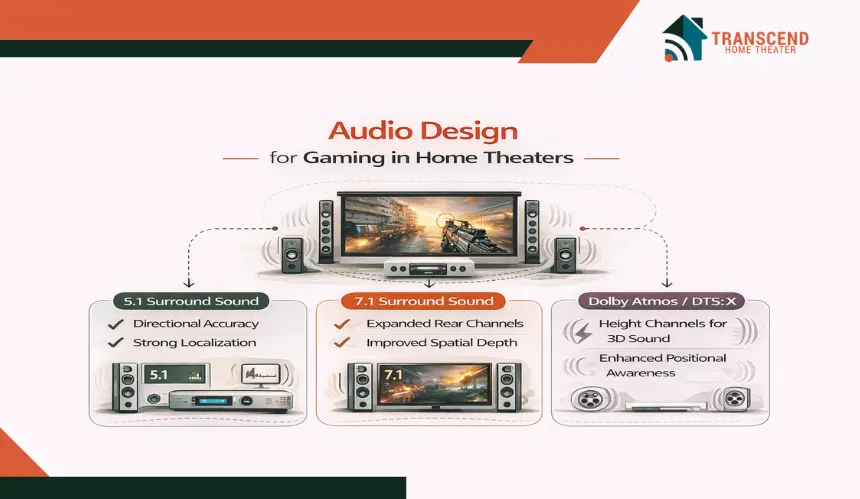
Visual latency is measurable and widely discussed. Audio latency is often overlooked, yet it directly affects spatial awareness, reaction timing, and overall immersion. If gunfire sounds half a second after the visual cue, the experience feels disconnected. In competitive gaming, even small synchronization errors disrupt timing-based gameplay.
A properly designed gaming home theater must deliver positional accuracy without introducing processing delay through the AV receiver, soundbar, or signal routing chain.
What Speaker Configuration Works Best for Gaming?
The ideal speaker layout depends on room size, seating distance, and content type. However, from a technical standpoint, the most common gaming configurations include:
- 5.1 surround sound for directional accuracy
- 7.1 surround for expanded rear-channel separation
- Dolby Atmos with height channels for vertical sound cues
In modern titles optimized for object-based audio engines, Dolby Atmos and DTS:X can enhance spatial realism by mapping sound objects in three-dimensional space. This improves positional awareness in open-world games and competitive shooters where verticality matters.
For most mid-sized rooms, a calibrated 5.1 system with correctly placed surround speakers at ear level delivers strong localization without overcomplicating the layout.
Subwoofer placement should avoid corner overload unless bass management is calibrated. Uneven low-frequency distribution can mask midrange clarity, which affects dialogue and directional effects.
Technical requirements for gaming-focused audio systems include:
- AV Receiver supporting HDMI 2.1 passthrough
- eARC compatibility for high-bitrate audio formats
- Direct or Pure mode to bypass unnecessary DSP processing
- Configurable audio delay settings
Proper channel separation and crossover calibration ensure that bass remains impactful without muddying environmental cues.
How Do You Prevent Audio Sync and Processing Delay?
Audio delay typically enters the system through digital signal processing in the AV receiver. Features such as room correction algorithms, upmixing, dynamic compression, and virtual surround processing can introduce measurable latency.
In gaming setups, it is recommended to:
- Enable direct audio passthrough
- Minimize unnecessary DSP modes
- Confirm lip-sync alignment using built-in test tools
- Use HDMI rather than optical audio to maintain bandwidth and sync
eARC allows uncompressed Dolby Atmos or DTS:X transmission without downscaling, reducing format conversion delay. Optical connections, by contrast, are limited in bandwidth and may introduce additional processing steps.
If the setup uses a soundbar instead of a full AVR system, verify that the unit supports low-latency gaming mode and HDMI passthrough. Some entry-level soundbars add 20–40 ms of delay due to internal processing.
For highly competitive players, wired gaming headsets still offer the lowest audio latency and precise directional feedback. However, for immersive home theater gaming, a calibrated surround system balances cinematic depth with real-time responsiveness.
Audio design is not just about loudness or channel count. It is about maintaining synchronization between what the player sees, hears, and controls. When audio timing aligns perfectly with on-screen action, immersion feels natural and instinctive rather than processed or artificial.
Signal Path Optimization: Reducing System-Wide Latency for Gaming
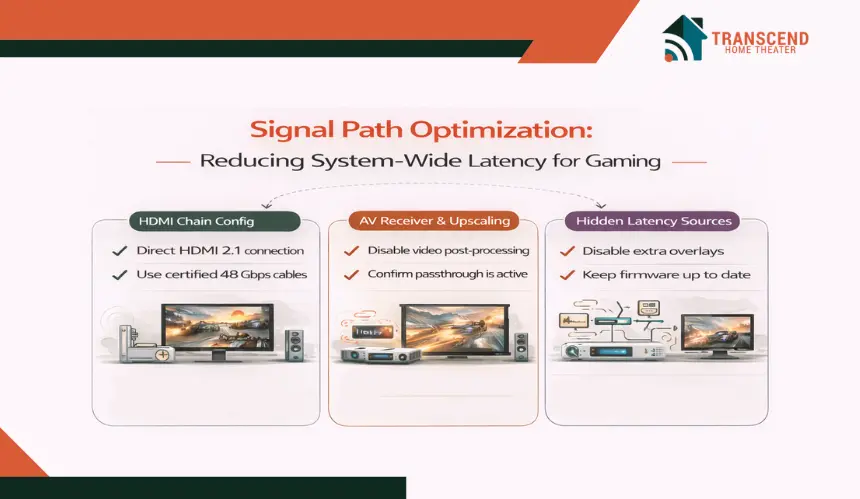
Even when the display and audio hardware are capable of low latency, the signal path between devices often becomes the hidden bottleneck. Every additional device in the HDMI chain introduces handshake negotiations, potential bandwidth limits, and processing layers that can increase delay.
Gaming performance depends on how efficiently the signal travels from the console or GPU to the display and audio system. A poorly structured signal chain can add 10 to 40 milliseconds without the user realizing it.
How Should the HDMI Chain Be Structured for 4K 120Hz Gaming?
For next-generation gaming, HDMI bandwidth is not optional. A 4K 120Hz signal with HDR requires up to 40–48 Gbps of bandwidth. If any device in the chain does not support full HDMI 2.1 throughput, the system may drop to 4K 60Hz or disable VRR automatically.
Best practice configuration:
- Connect a console or gaming PC directly to the HDMI 2.1 port on the TV if competitive latency is the priority.
- Use eARC from the TV to the AV Receiver for high-bitrate audio return.
- Use certified Ultra High Speed HDMI cables rated for 48 Gbps.
Avoid using:
- HDMI splitters that reduce bandwidth
- Long unverified HDMI cables beyond certified length specifications
- Legacy HDMI 2.0 receivers in the signal chain
EDID handshake issues can also cause resolution fallback or refresh rate locking. Firmware updates on displays and receivers often resolve compatibility conflicts between VRR, HDR, and high frame rate signals.
Cable length also matters. Passive HDMI cables beyond 3 meters may struggle with stable 4K 120Hz transmission unless properly certified. For longer runs, active optical HDMI cables provide better signal integrity.
Should the AV Receiver Sit Before or After the Display?
Placement of the AV Receiver directly affects latency. There are two common configurations:
- Console → AVR → TV
This centralizes switching but adds receiver processing to the video signal path. If the receiver supports full HDMI 2.1 passthrough and gaming mode bypass, latency remains minimal. If not, the video delay can increase.
- Console → TV → eARC → AVR
This reduces video processing delay by sending the signal directly to the display first. Audio is returned to the AVR via eARC. This configuration is typically preferred for competitive gaming.
When using the AVR in the signal path, ensure:
- Video upscaling is disabled
- Post-processing filters are turned off
- Game or Direct mode is activated
- HDMI passthrough mode is confirmed in settings
Some AV receivers add 5 to 15 ms of video delay when video processing is active. That delay stacks on top of display latency.
What Other Hidden Latency Sources Should Be Checked for Gaming?
Network-based streaming overlays, wireless display adapters, and video capture devices can introduce additional lag. Competitive systems should avoid wireless HDMI transmitters or unnecessary signal conversions.
Firmware updates are often overlooked. Manufacturers periodically optimize VRR stability, ALLM behavior, and HDMI bandwidth handling. Keeping all devices updated reduces compatibility conflicts.
Signal path optimization is about eliminating friction. When the HDMI chain is clean, direct, and bandwidth-ready, the system performs at the hardware’s true capability rather than being limited by configuration mistakes.
Gaming Room Design for Immersion and Focus
Electronics determine speed. The room determines perception. Even a perfectly calibrated display and low-latency audio system can feel underwhelming if the room introduces echo, glare, or visual distractions.
For gaming environments, room design should enhance contrast clarity, spatial audio accuracy, and sustained focus during long sessions.
How Does Acoustic Treatment Improve Positional Accuracy?
Gaming audio relies heavily on directional cues. Footsteps behind a player, environmental reflections, and vertical movement indicators depend on clean channel separation. In untreated rooms, hard reflective surfaces cause sound reflections that blur localization.
Key acoustic considerations:
- Install absorption panels at first reflection points on side walls
- Use bass traps in front corners to control low-frequency buildup
- Avoid large parallel reflective surfaces without damping
Reverberation time in small gaming rooms should ideally remain under 0.5 seconds for clear dialogue and positional accuracy. Excessive echo masks directional clarity and reduces the effectiveness of Dolby Atmos or DTS:X height channels.
Subwoofer calibration also matters. Uneven bass distribution can overpower midrange frequencies where most positional audio information exists. Proper crossover settings between 80Hz and 100Hz often maintain clarity without overwhelming low-end response.
Acoustic treatment does not need to transform the room into a recording studio. The objective is controlled sound reflection, not total isolation.
What Lighting Conditions Support Visual Clarity?
Lighting directly affects perceived contrast, HDR performance, and eye fatigue. For gaming home theaters, lighting design should reduce glare without forcing complete darkness unless a projector system requires it.
Best practices include:
- Install dimmable LED bias lighting behind the display
- Use blackout curtains to block external light sources
- Avoid overhead lights positioned directly above seating
Bias lighting set to approximately 6500K, which matches D65 white point calibration, reduces eye strain during high-contrast gaming scenes. It also stabilizes perceived black levels on OLED and LED displays.
For immersive environments, controlled RGB accent lighting can enhance atmosphere. However, lighting should not overpower screen luminance. Dynamic lighting systems should operate in sync mode only if they do not introduce processing delay to the display signal.
Seating Distance and Field of View
Immersion depends on screen fill within the viewer’s field of vision. The Society of Motion Picture and Television Engineers recommends a viewing angle between 30 and 40 degrees for cinematic immersion. For gaming, many players prefer slightly closer seating to increase peripheral engagement.
Example reference distances:
- 65-inch 4K display: approximately 4 to 6 feet
- 100-inch projection screen: approximately 8 to 10 feet
Sitting too far reduces immersion. Sitting too close to lower-resolution displays can expose pixel structure.
Console and PC Configuration For Maximum Gaming Performance
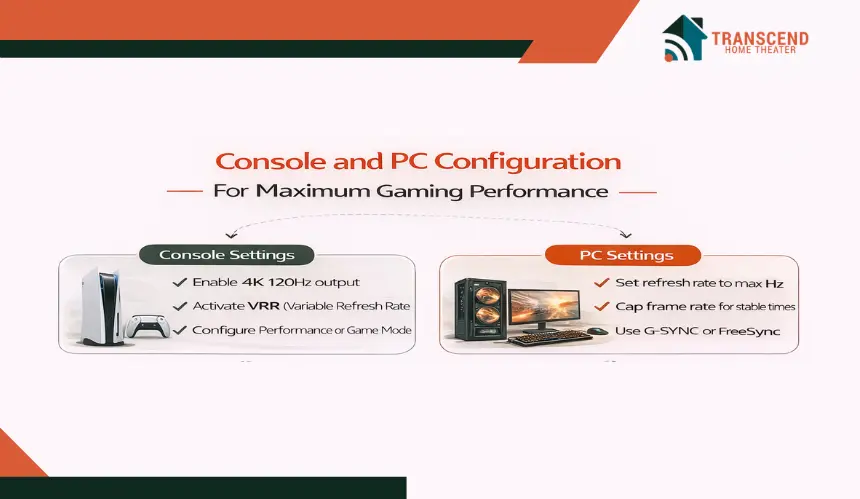
Hardware capability alone does not guarantee low latency or smooth frame pacing. Consoles and gaming PCs must be configured correctly to activate high refresh rates, Variable Refresh Rate support, and performance-focused rendering modes.
Misconfigured system settings can cap output at 60Hz, disable VRR, or introduce frame instability even when the display and HDMI chain are fully compatible.
How Should Next-Gen Consoles Be Configured for 4K 120Hz Gaming?
Modern consoles such as PlayStation 5 and Xbox Series X support 4K resolution at 120Hz, but these features are not always enabled by default.
For optimal console configuration:
- Enable 120Hz output in system video settings
- Activate Variable Refresh Rate when supported by the display
- Select Performance Mode in supported games
- Confirm HDR calibration using the built-in setup tool
- Verify the HDMI signal format is set to enhanced or 4K 120Hz
Without enabling 120Hz output, many systems default to 60Hz even on HDMI 2.1 displays. VRR stabilizes frame pacing by synchronizing display refresh cycles with GPU output. This reduces screen tearing and stutter in frame rate-variable games.
Performance Mode typically prioritizes a higher frame rate over maximum resolution. For competitive gaming, stable 120fps gameplay delivers smoother motion and reduced input perception delay compared to 4K 60fps Quality Mode.
HDR calibration should also be adjusted carefully. Over-bright HDR settings can clip highlights and obscure shadow detail, reducing visibility in darker gaming environments.
How Should a Gaming PC Be Tuned for Low Latency?
PC gaming offers more flexibility but also more variables. GPU output settings, driver configuration, and frame rate management all influence responsiveness.
Recommended PC gaming configuration steps:
- Set the display refresh rate to the panel’s maximum capability in the operating system settings
- Enable G-SYNC or FreeSync if supported
- Cap frame rate slightly below the maximum refresh rate to maintain frame time stability
- Disable V-Sync at the driver level when using VRR
- Use full-screen exclusive mode where supported
For example, on a 120Hz display, setting a frame cap at approximately 117fps can reduce micro-stutter caused by refresh rate boundary conflicts. NVIDIA Control Panel and AMD Radeon Settings both provide frame limiting and adaptive sync configuration tools.
Frame time stability is as important as raw frame rate. Inconsistent frame delivery produces a perceptible stutter, even if the average fps appears high. Monitoring software can measure frame time variance to confirm consistency.
Resolution scaling should be adjusted carefully. Running ultra settings at unstable frame rates often increases input perception delay compared to slightly reduced graphics settings with stable high frame output.
Network and Background Process Optimization
Online gaming performance also depends on network stability. While not directly related to display latency, high ping or packet loss affects perceived responsiveness.
Best practices include:
- Wired Ethernet connection instead of Wi-Fi
- Router Quality of Service prioritization for gaming devices
- Closing background downloads or streaming tasks
System-level configuration ensures that the hardware investment translates into measurable performance. Proper console activation of 120Hz and VRR unlocks next-generation capabilities. GPU tuning and frame pacing alignment refine PC responsiveness.
When configuration matches hardware capacity, the system performs at its designed threshold rather than a limited default state.
Calibration and Performance Testing For Gaming
A gaming home theater should not rely on assumptions. Marketing specifications list theoretical input lag and refresh rates, but real-world performance depends on configuration, firmware, room acoustics, and signal integrity. Calibration and testing confirm whether the system is actually delivering low latency and synchronized audio-visual output.
Even a well-executed home theater design and installation must be verified under gaming load conditions to ensure measurable performance.
How Do You Measure Input Lag Accurately?
Input lag is the time between a controller command and the visual response appearing on screen. Competitive gaming environments typically aim for:
- Under 20 milliseconds for responsive gameplay
- Under 15 milliseconds for high-performance setups
- Under 10 milliseconds for optimal esports-level responsiveness
Testing methods include:
- Dedicated input lag testers that measure signal delay directly
- High-speed camera recording comparing the controller LED response to on-screen reaction
- Manufacturer-provided latency benchmarks in Game Mode
Testing should be performed in the exact picture mode used during gaming. Many displays show low latency in Game Mode but exceed 40 milliseconds in standard or cinema modes.
It is also important to test at different resolutions and refresh rates. Some displays measure 10 ms at 1080p 120Hz but increase to 18–22 ms at 4K 60Hz. Confirming performance at the intended resolution ensures accurate expectations.
How Do You Confirm Audio and Video Synchronization?
Audio delay can disrupt immersion even if video latency is low. Most modern AV Receivers provide adjustable lip-sync settings, typically configurable in 1-millisecond increments.
To validate sync accuracy:
- Use the built-in audio delay test tools available in console settings
- Play content with visible on-screen audio cues, such as rhythmic taps
- Adjust the AVR delay settings until the sound aligns precisely with the visual action
eARC transmission should be confirmed for high-bitrate audio formats like Dolby Atmos. If audio drops to compressed formats, recheck HDMI bandwidth settings and cable certification.
Room correction systems such as Audyssey or Dirac Live can enhance tonal balance but may introduce minor processing delay. Testing should verify that these systems do not compromise gaming responsiveness.
Final System Checklist Before Regular Use
Before finalizing the setup, confirm:
- Display Game Mode is active
- Motion smoothing and post-processing features are disabled
- HDMI ports are configured for enhanced bandwidth
- VRR is enabled and functioning
- Audio passthrough is active without unnecessary DSP modes
- Firmware on all devices is up to date
Calibration is the final validation step that transforms a theoretical setup into a verified performance environment. When latency benchmarks fall within target ranges and audio synchronization is precise, the gaming home theater operates as engineered rather than as marketed.
Professional Gaming Home Theater Calibration in Virginia and Maryland
In many Virginia and Maryland homes, calibration challenges are not theoretical; they are architectural. Finished basements in Northern Virginia often introduce drywall echo and low ceiling reflections that affect surround imaging.
Open-concept family rooms in Montgomery County can dilute directional audio precision. Larger properties in Loudoun County or Howard County frequently require longer HDMI runs, where signal integrity and 4K 120Hz stability must be verified carefully.
Professional calibration in these environments typically includes real-time input lag validation, AVR passthrough confirmation, eARC bandwidth testing, and acoustic measurement using calibrated microphones.
Rather than relying on default presets, measurements are taken inside the actual room to confirm subwoofer crossover alignment, lip-sync accuracy, and full HDMI 2.1 throughput.
For gaming-focused systems, especially those supporting 120Hz and VRR, this final validation ensures the system performs at its engineered capability inside the specific layout of the home, not just under showroom conditions.
If you want a gaming home theater that delivers measurable low latency and true immersion, not just impressive specs on paper, the final results come down to precision. Transcend Home Theater specializes in performance-focused system design, signal optimization, and real-world calibration so your console or PC runs at its full potential.
Frequently Asked Questions
Is 60Hz good enough for console gaming in a home theater?
For casual gaming and cinematic single-player titles, 60Hz is still playable and widely supported. However, fast-paced shooters and competitive multiplayer games benefit significantly from 120Hz output because motion appears smoother and controller input feels more immediate.
Does a bigger screen increase input lag?
Screen size itself does not increase input lag. Latency is determined by the display’s internal processing pipeline, not its physical dimensions. A 100-inch projector can have lower lag than a 55-inch TV if the electronics are optimized for gaming.
Can wireless surround speakers cause audio delay in gaming?
Some wireless speaker systems introduce additional signal processing and transmission delay. While many modern systems compensate automatically, wired speaker connections through an AV Receiver generally provide more predictable synchronization for gaming-focused setups.
Is 8K resolution necessary for next-generation gaming?
Current consoles and most gaming PCs do not consistently deliver native 8K gameplay. 4K at 120Hz provides a more meaningful performance upgrade than higher resolution at lower frame rates. Bandwidth, refresh rate, and VRR stability matter more than pixel count.
Do gaming TVs wear out faster with long play sessions?
Modern OLED and LED panels are engineered for extended usage. Burn-in risk on OLED displays has decreased significantly due to pixel shifting and panel management features. Using built-in screen protection settings and varied content reduces long-term image retention concerns.
Should a gaming PC be connected differently than a console?
Yes, PCs often benefit from enabling RGB full chroma output, adjusting refresh rate manually in operating system settings, and fine-tuning G-SYNC or FreeSync within the GPU control panel. Consoles typically manage most optimization automatically once 120Hz and VRR are enabled.